September 9, 2026
Highlights
Start with a question. Explore the web. Turn what you learn into a document, a plan, or an agent you can use again. This release brings those steps closer together in a new chat experience, with much more room to work alongside the AI.
- A new place to get work done. Chat has a refreshed home, clearer activity, and a canvas beside the conversation. Draft a document, browse a website, or create an agent from the starting screen. Keep your documents, images, sources, and browser sessions close at hand, and queue your next instruction while the AI is working.
- Go from browsing to a report you can use. Watch website tasks in the browser panel, or start Deep Research for a question that needs a closer look. Follow its progress, review the sources, and open the report in an editable canvas. Select a passage to ask for a change, format the result, and print or save it as a PDF.
- Turn a good conversation into something reusable. Describe an agent's job in chat, then refine its instructions, knowledge, and tools through follow-up messages. The new Library helps you find and reuse files across chats, and you can carry a build idea and its attachments into App Builder.
There is more below, including easier connector setup, six additions to the model catalog, and App Builder improvements. Available features depend on your organization's settings, permissions, and plan.
New features
Meet your new chat workspace
Chat now gives you a clearer starting point and more space to work with the result.
The refreshed home offers shortcuts such as Write a document, Browse a website, Create an agent, and Create an image, with file analysis and research entry points when available. Suggested prompts help you get started without having to know which tool to pick.
During a conversation, a side panel keeps the document, image, or browser task in view. A strip of items created or used in the chat lets you reopen documents, images, browser sessions, and sources. Tool activity is easier to follow too, with recognizable connector names and descriptions of what is happening.
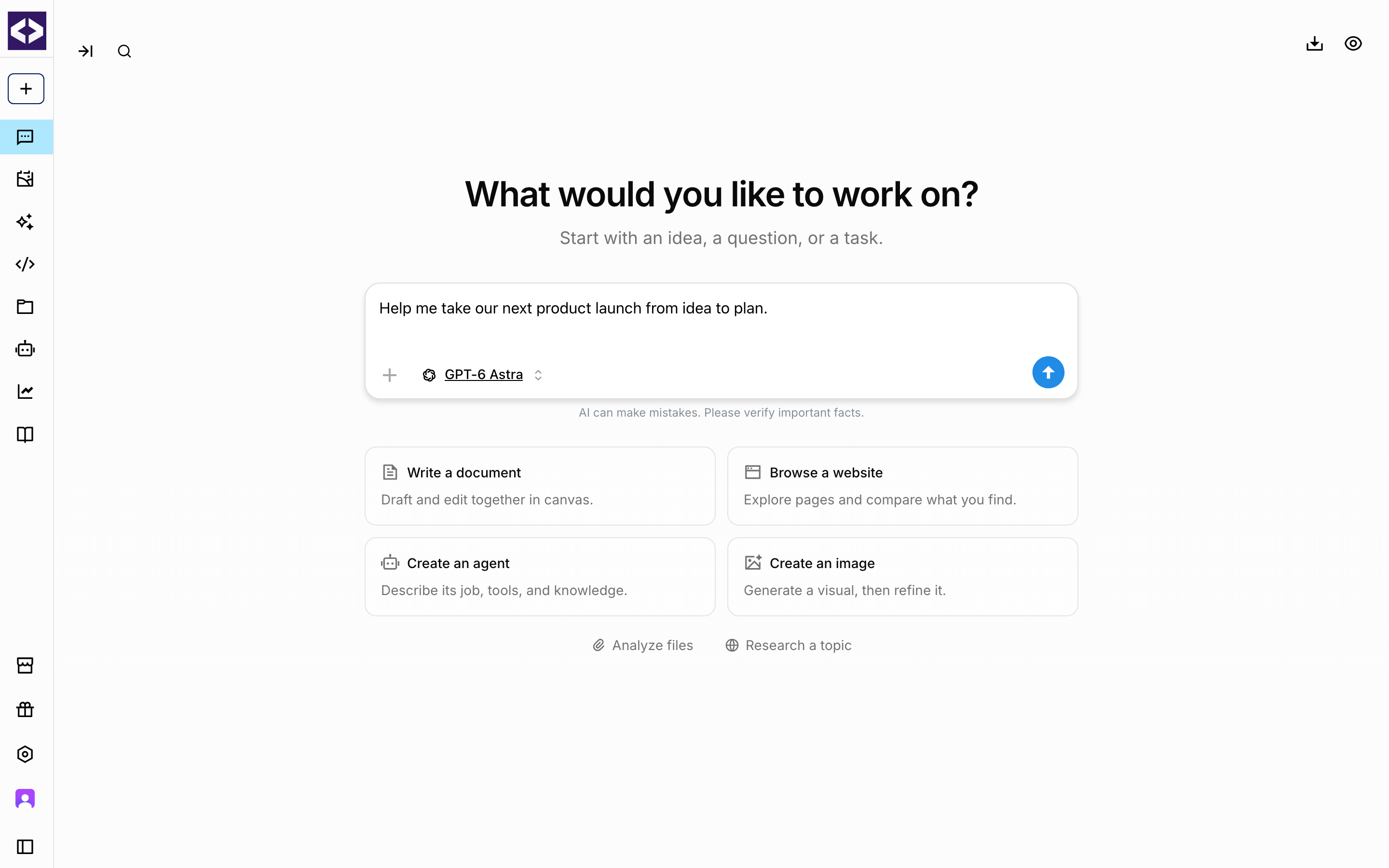
Have the next instruction ready before the answer finishes? Add it to the queue. Follow-up prompts run in order, and you can edit a queued message or send an instruction immediately to interrupt the current response. The new experience also extends to chats inside projects.
Browse websites alongside the AI
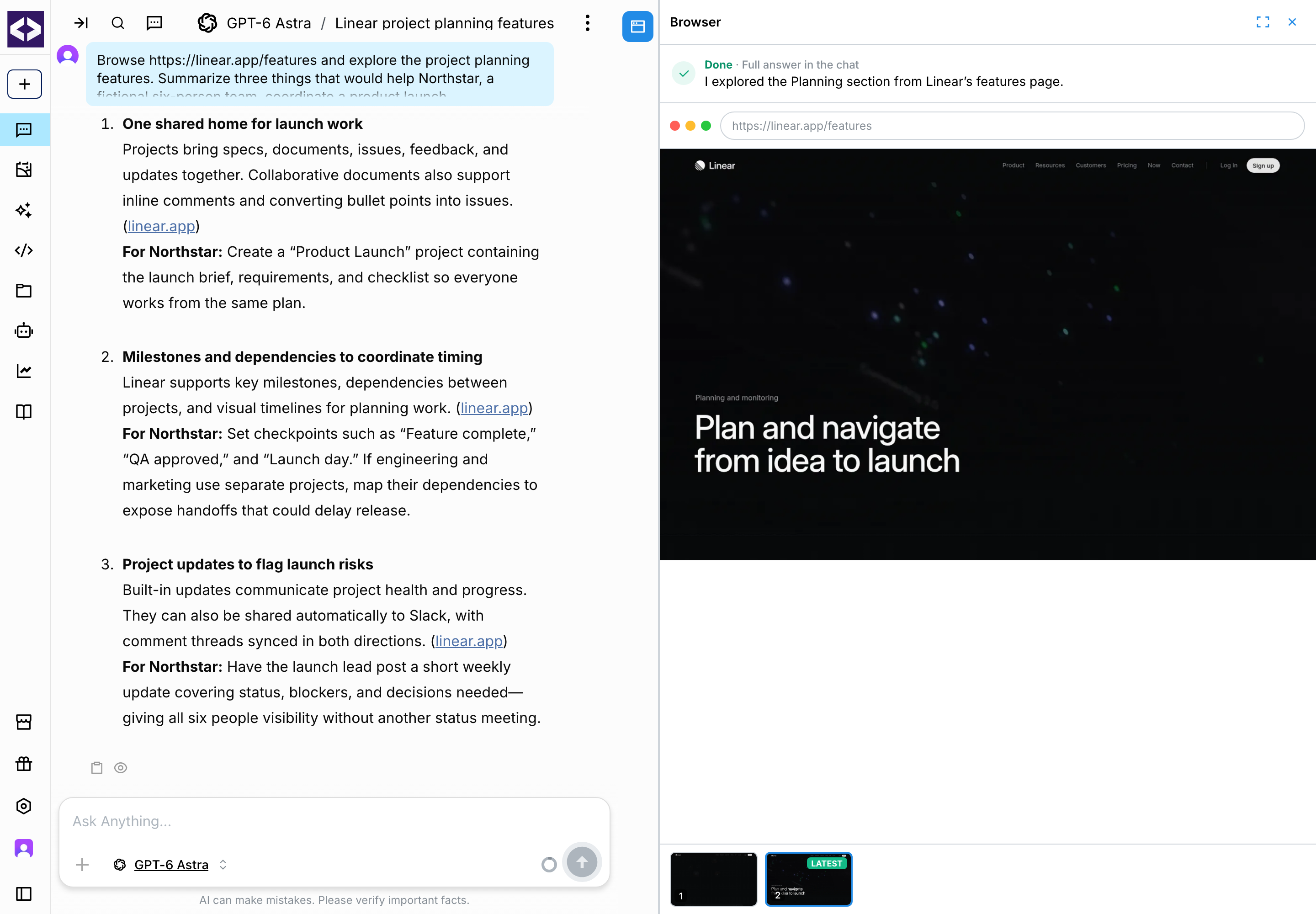
Some questions need more than a search result. Ask Devs.ai to visit a website, explore its pages, and compare what it finds while you follow the task in the browser panel.
The browser view shows the AI's work as it happens. When the task finishes, a compact summary and screenshot strip help you revisit the pages it explored. Browser sessions also appear among the items you can reopen from the conversation.
If a website needs sign-in details, the browser can request them through a dedicated secure input form, keeping you from having to paste them into the conversation. Browsing can continue after that pause. This release also improves access to sites that previously blocked automated browsing, although individual websites can still restrict access.
Try it: “Browse Linear's website and summarize the features that would help a small team coordinate a product launch.”
Deep Research, from question to editable report
For work that needs a broader search and a closer review of the evidence, start Deep Research from the chat controls, the home screen's Research a topic shortcut, or an explicit request in your message.
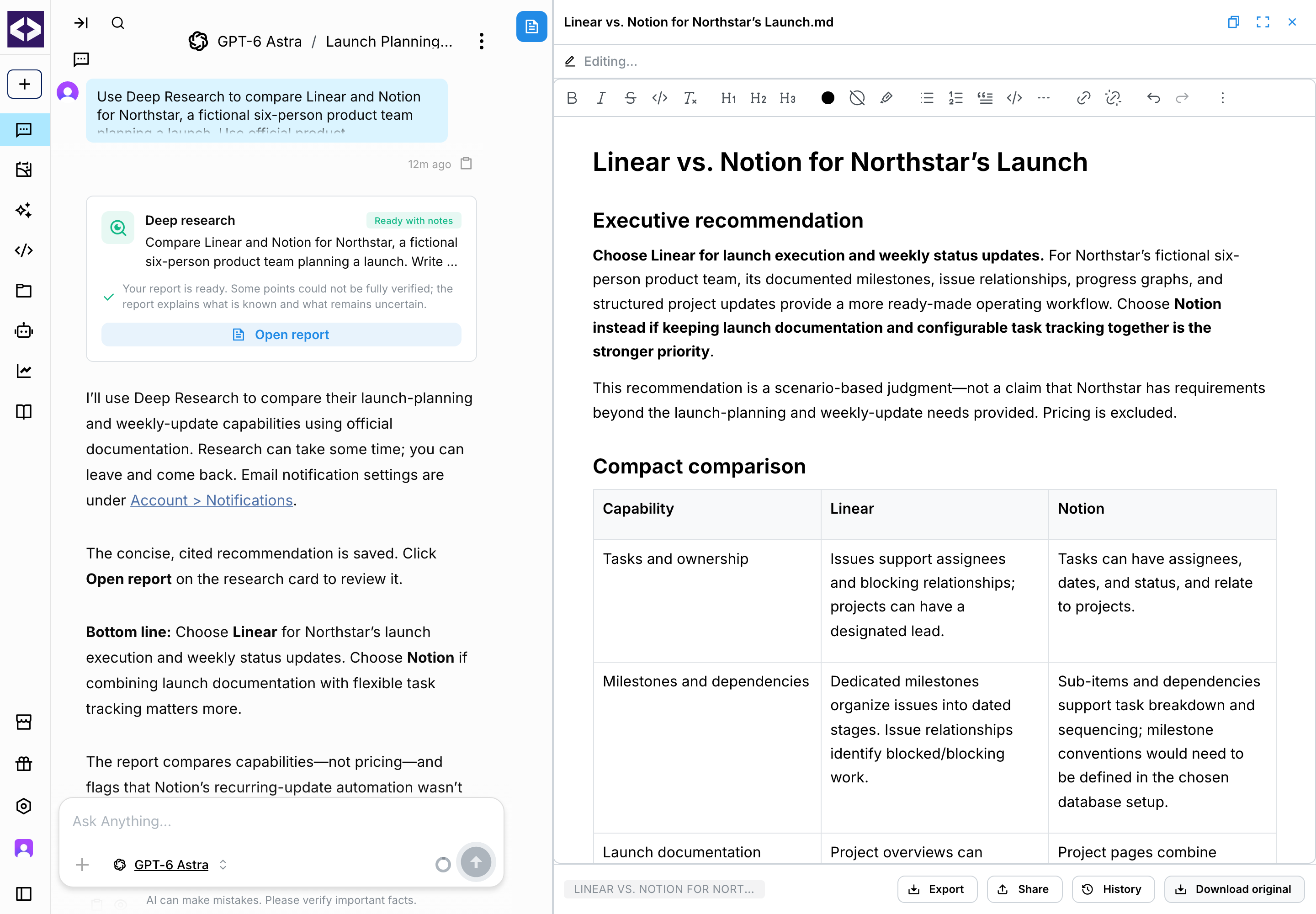
An in-chat progress card follows the work through planning, searching, reviewing, and writing. You can expand the details to see the searches, then use Open report to read the result in canvas. Reports include sources and call out gaps or uncertainty when the evidence is incomplete.
You can leave the chat and return later. Completion emails can let you know when the report is ready, according to your notification settings. Research also keeps the requested report language when it draws on sources in different languages.
The report is a starting point for the next step: edit it directly, ask for a shorter version, or turn its findings into a plan. Longer research runs now have dedicated time to write the report after searching, with clearer outcomes when a run is paused, stopped, or unable to finish.
Try it: “Use Deep Research to compare Linear and Notion for a small product team. Use official sources, explain the tradeoffs, and write a recommendation in canvas.”
Canvas: write, refine, and share the finished document
Work on a document beside the conversation, with a rich-text editor for direct changes and the AI ready to help with the next draft.
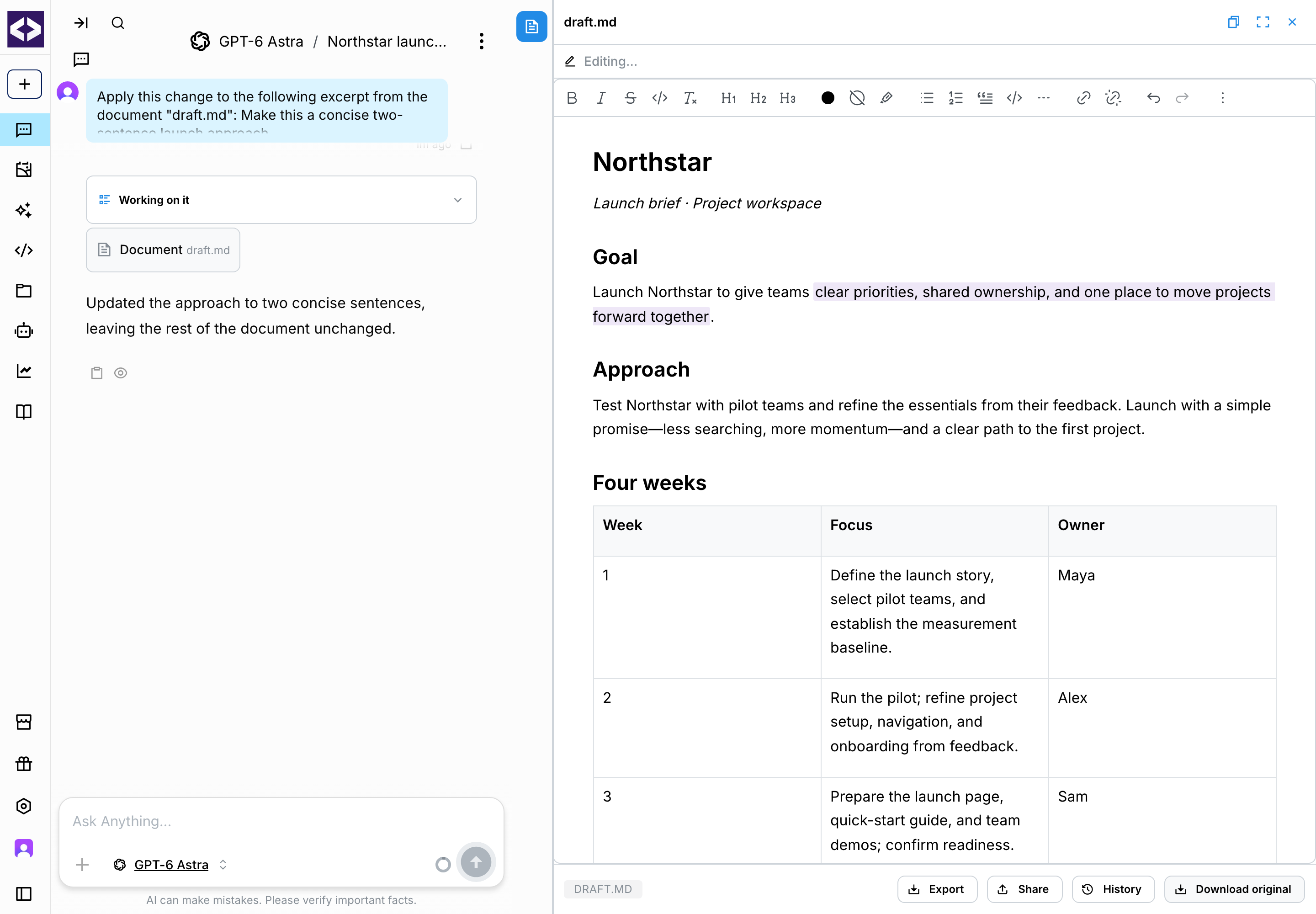
- Edit exactly what you mean. Select a passage to shorten it, make it more formal, fix the grammar, add detail, or describe a custom change. The AI works from the current document, including your own edits.
- Give the document some shape. Use headings, lists, tables, text colors, and highlights. Documents can include images, diagrams, and charts, and you can resize images in the editor.
- Revisit earlier drafts. AI changes create new versions. Open the version history or return to the version produced by a particular message.
- Take the result with you. Copy or export the document, or use Print / Save as PDF with the rendered formatting, diagrams, and charts.
- Share inside your organization. Document owners can create a link for signed-in colleagues to view the latest saved version, and disable that link later.
Try it: “Draft a launch brief in canvas with goals, a four-week timeline, and a table of responsibilities.” Then select the opening paragraph and ask for a more concise version.
Create an agent by describing its job
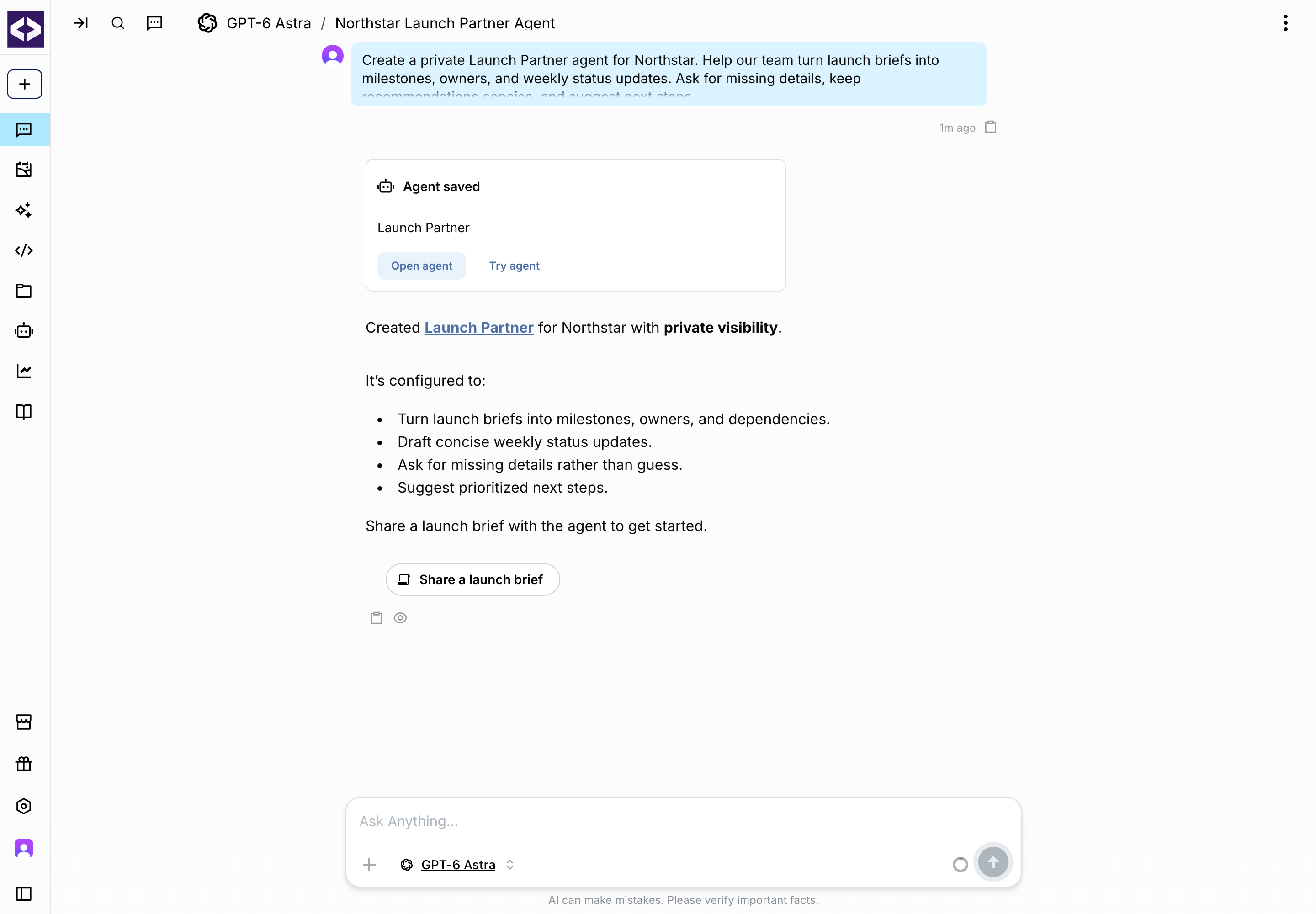
You can now create and configure an agent directly from chat. Describe what it should help with, how it should respond, and which resources it should use. Devs.ai can save the agent and give you a link to open or try it.
Keep refining it in the same conversation: adjust its instructions, choose a model, connect available tools, add supported documents as knowledge, or configure skills and inputs. Follow-up changes update the same agent, so you can build on what you already created.
Existing permissions and connector setup still apply. You can use the agent editor whenever you want to inspect or refine the saved configuration.
Try it: “Create a Launch Partner agent for our product team. Help us turn a launch brief into milestones, owners, and a weekly status update. Ask about missing details and keep recommendations concise.”
A Library for the work you want to keep
The new Library brings your generated and uploaded files into a visual gallery. Find documents, spreadsheets, images, PDFs, and other files without searching through old conversations.
Search by name, filter by file type or date, and narrow the view to generated files or uploads. Preview a file, download it, or return to the conversation where it came from. When you start another chat, attach a file from Library to reuse what you already have.
Take a build idea from chat into App Builder
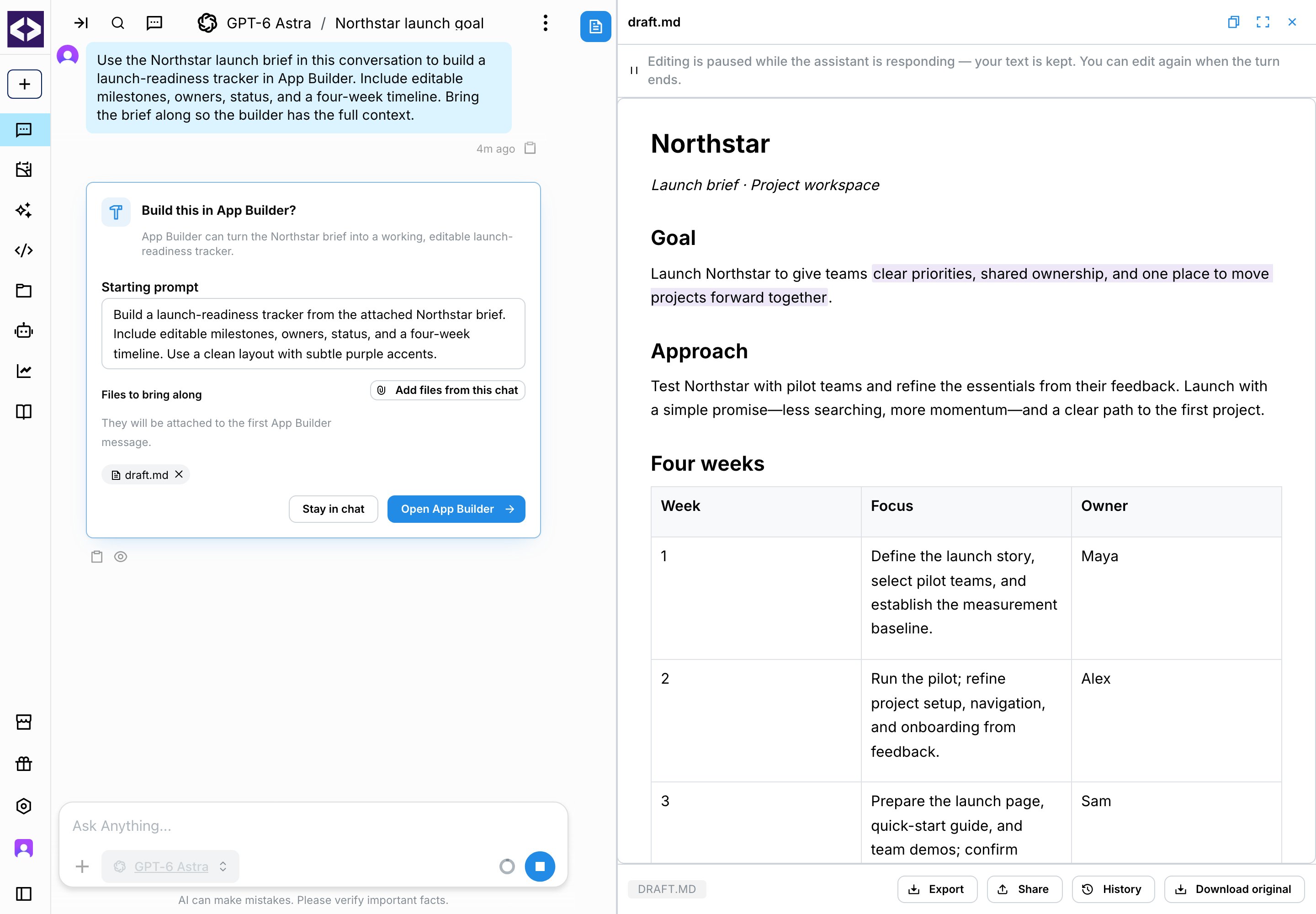
When the conversation turns into a request for an app, website, tool, or presentation, chat can offer to continue in App Builder. Accept the handoff and your prompt goes with you, along with eligible files attached to the request.
That means a brief or reference document you have already supplied can travel with the build idea. If a file cannot be carried over, the handoff explains what happened and provides a way to retry.
New to App Builder? Where guest access is enabled, you can try building before creating an account. Trial limits apply, and you will need to sign up to deploy, share, or publish an app.
Connect the tools you need as you work
Chat can now help you discover a relevant connector even if your organization has not enabled it yet. A setup card guides admins to enable or finish connecting it; other members get guidance to ask their admin.
Connected services are easier for the AI to find and use, including services with large tool catalogs. When a relevant connection is available, chat prefers it for supported tasks instead of navigating the service through the browser. Account settings also provide clearer connector cards with Disconnect and Reconnect actions.
More models to choose from
The model catalog has grown since the last release:
- GPT-6 Astra, also available in App Builder
- Gemini 3.8 Flash
- DeepSeek V4 Pro and DeepSeek V4 Flash
- Qwen 3.7 Max and Qwen 3.8 Max
Model availability depends on your organization's enabled models and plan.
Improvements
- A quicker start to chat turns, with more work happening in parallel before the answer begins.
- Steadier App Builder previews and saves. The first preview waits until the initial build is ready, previews recover more reliably when you return, and saved app versions are more dependable.
- More useful suggested follow-ups, with actions that render reliably as clickable chips.
- Clearer connection status, including when a service still needs setup or needs to be reconnected.
- More recognizable files, with generated images named from their prompts and image thumbnails in the Library attachment picker.
- More accurate marketplace details, including the creator on new listings and the signed-in user's name in generated apps.
- A working route back to Devs.ai from the Built with Devs.ai badge on shared apps.
Bug fixes
This release also fixes issues with queued messages and interrupted replies, canvas edits and version history, document sharing and PDF output, browser sign-in pauses, long-running research, connector permissions, and organization invitations. App Builder previews, saved app versions, and knowledge-file processing received additional reliability fixes.