Integrating Microsoft Teams
You can integrate Microsoft Teams with the platform to interact with agents directly from Teams. This lets people in your organization use Devs.ai from inside the Teams client without switching tools.
This is separate from connecting agents to Microsoft Teams data through the Microsoft Services MCP server, which only gives agents Graph API access to channels and messages.
You can chat with agents you have access to, including shared, organizational, or custom agents. Both direct messages and channel conversations are supported, giving you flexibility in how and where you work with agents.
📝 Preview Devs.ai for Microsoft Teams is in preview and is available by request. Contact your account team or organization admin to have it enabled for your tenant before the steps below apply.
Set up with ease
The integration requires minimal setup (see the section below). A tenant admin connects Devs.ai once, and the Teams app is then published to your organization for everyone to use.
Switch between chat and agent modes
Use simple devsai text commands to pick a chat model or an agent for a conversation, right from Teams. Each direct message and channel can have its own target.
Improve collaboration
Bring agents into your channels. @mention Devs.ai in a conversation to summarize discussions, answer questions in context, and surface insights, without leaving Teams.
How do I set up the Teams integration?
Setting up the Teams integration takes a few steps. Ensure the following are in place first:
- You need an organization role that can open Organization settings and Integrations (typically a Company Admin).
- You must be a Microsoft Teams / Global administrator in the Microsoft tenant you want to connect. The connect flow requires admin consent to publish the app to your organization's app catalog.
Step 1: connect and consent
- On the left sidebar, click Organization > Integrations to open the Integrations page. Or, go to https://devs.ai/org-integrations.
- Click Connect for Microsoft Teams. You'll be redirected to the Microsoft sign-in and admin-consent page.
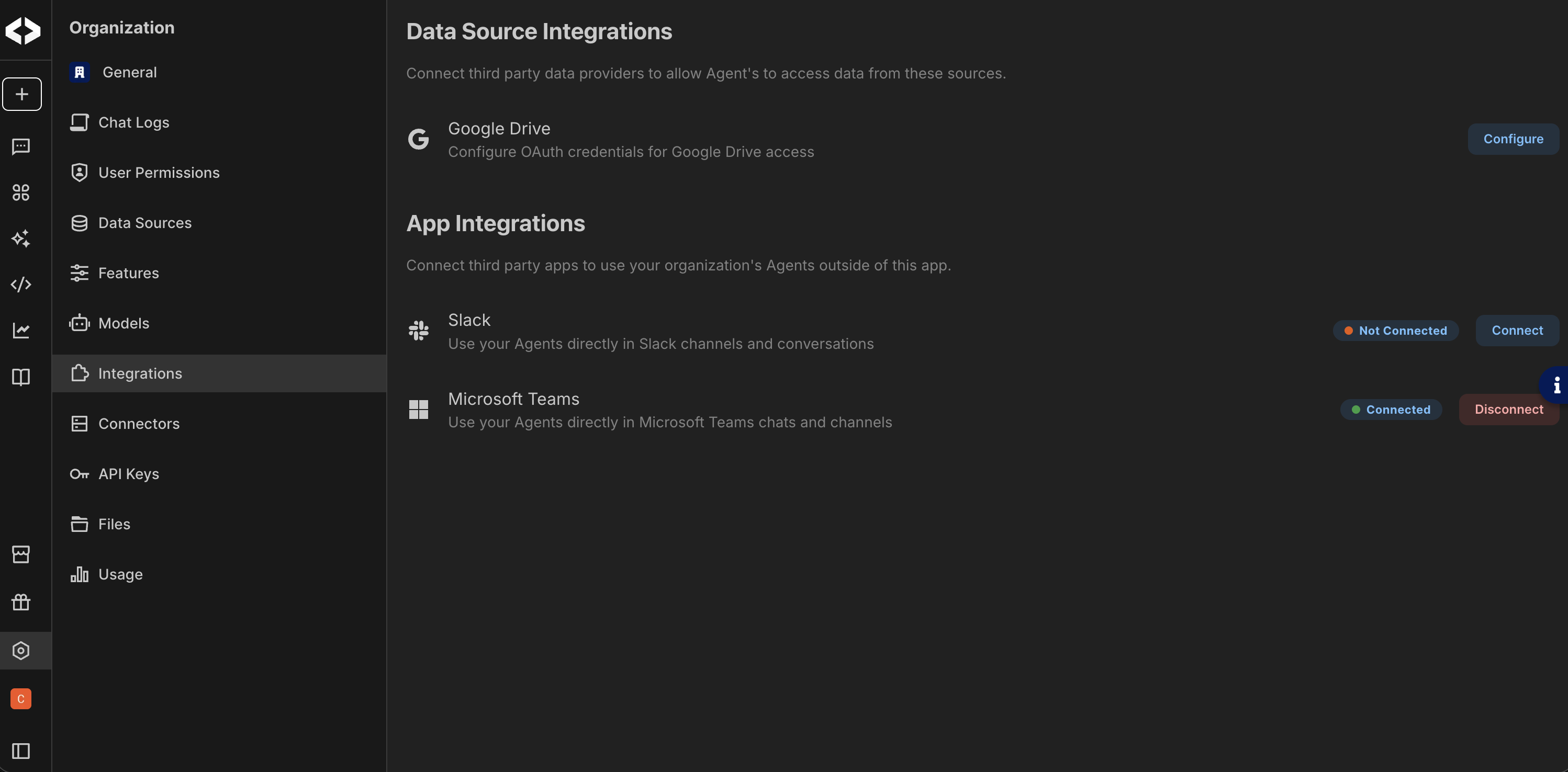
- Sign in as a tenant administrator and review the requested permissions. These permissions let Devs.ai publish the Teams app to your organization.
- Click Accept to grant admin consent. You'll be redirected back to the Integrations page, which now shows Teams as connected.
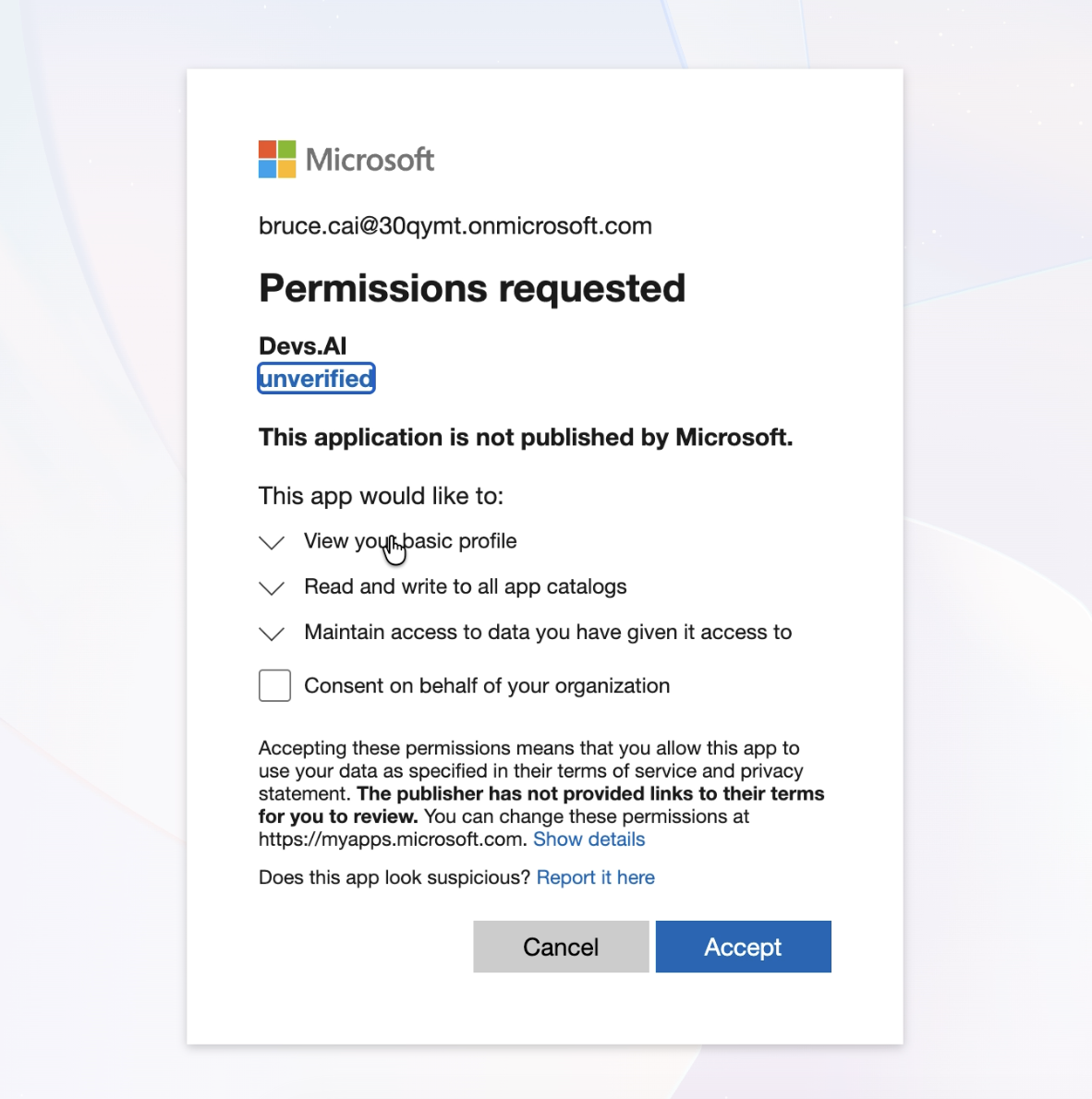
Installation uses tenant-aware routing: endpoints resolve the correct Devs.ai organization from your Microsoft tenant ID, so the right org is linked when users open the app in Teams.
Step 2: verify the app in the Teams admin center
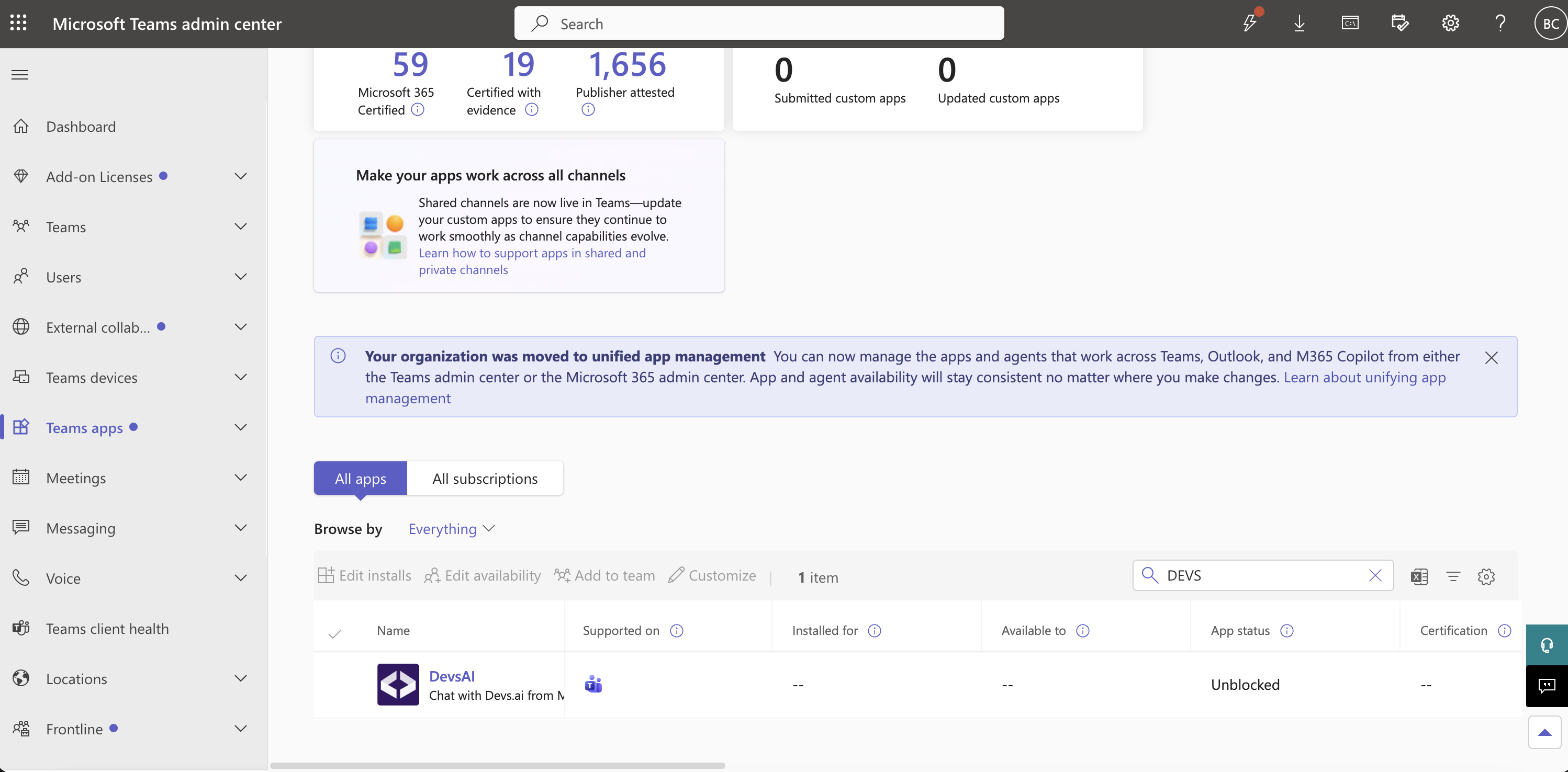
After consent, Devs.ai publishes the app to your organization's Teams app catalog. To confirm:
- Go to the Teams admin center → Manage apps.
- Search for DevsAI.
- Confirm the app appears and its status is Allowed (not Blocked). Make sure your app permission and setup policies allow custom apps for the users who need it.
Step 3: add the app in Teams
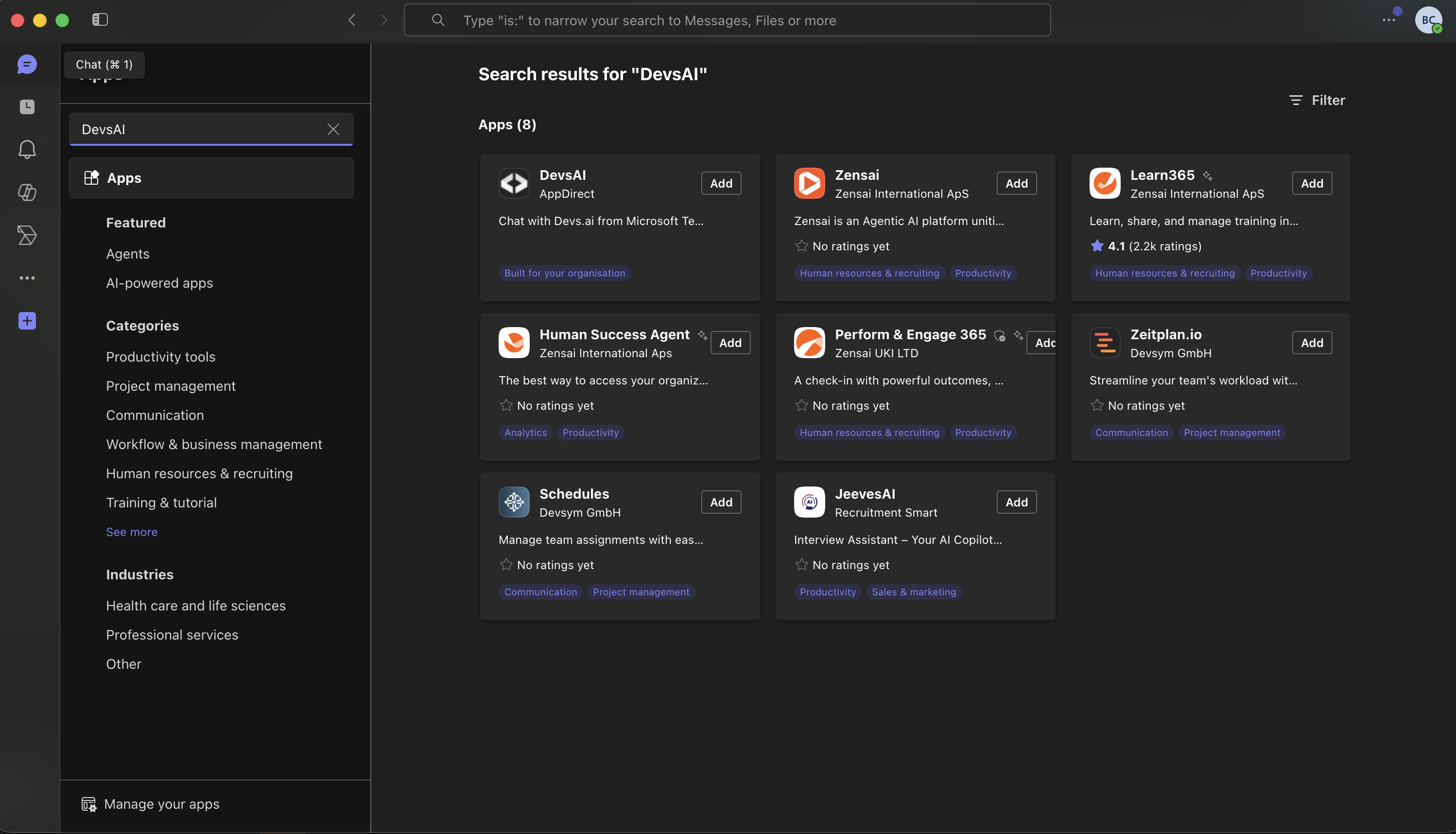
After consent, Devs.ai publishes the app to your organization's Teams app catalog. Microsoft then propagates it to Teams clients on its own schedule, so it may not appear instantly. There are two ways to get to it:
- Built for your organization — go to Teams → Apps → Built for your organization and add DevsAI from there.
- Search for it — open the Teams Apps panel and search for DevsAI, then add it. The app is usually findable through search before the "Built for your organization" section repopulates, so this is typically the quickest way to start.
⚠️ Allow time for provisioning: A newly published app is not always available immediately. Microsoft can take from a few minutes up to 24 hours to propagate catalog changes to all clients. If the app doesn't appear yet, wait and try again — searching the Apps panel and using the Teams web client (
teams.microsoft.com) in a fresh session usually surfaces it sooner than the cached desktop app. If it's still missing after ~24 hours, it is usually a policy issue (the app is blocked, or a permission/setup policy isn't allowing custom apps for your user) rather than propagation lag.
How does the default chat model work?
Every new Teams direct message starts in chat mode against your organization's provisioned default chat model until you change it for that DM. The same default is used when you start a fresh chat with devsai new. (See Organization models for how an admin sets the org default.)
An admin can change the organization's default chat model at any time from Organization > Models > Set default. The connected Teams app keeps the previously provisioned default until the new one is pushed to it — you do not need to reinstall the app.
To push the current org default to the connected Teams app:
- Go to Organization > Integrations > Microsoft Teams.
- Click Refresh default model on the connected Teams integration.
- New DMs and
devsai newnow use the updated default chat model.
📝 Note: Refreshing the default only affects chat mode — it does not change agents. A DM or channel that already has a specific model or agent selected keeps that selection until you change it again.
How do I use the app in a direct message?
Open a direct message with DevsAI in Teams and send a message. New conversations use the provisioned default chat model until you change it.
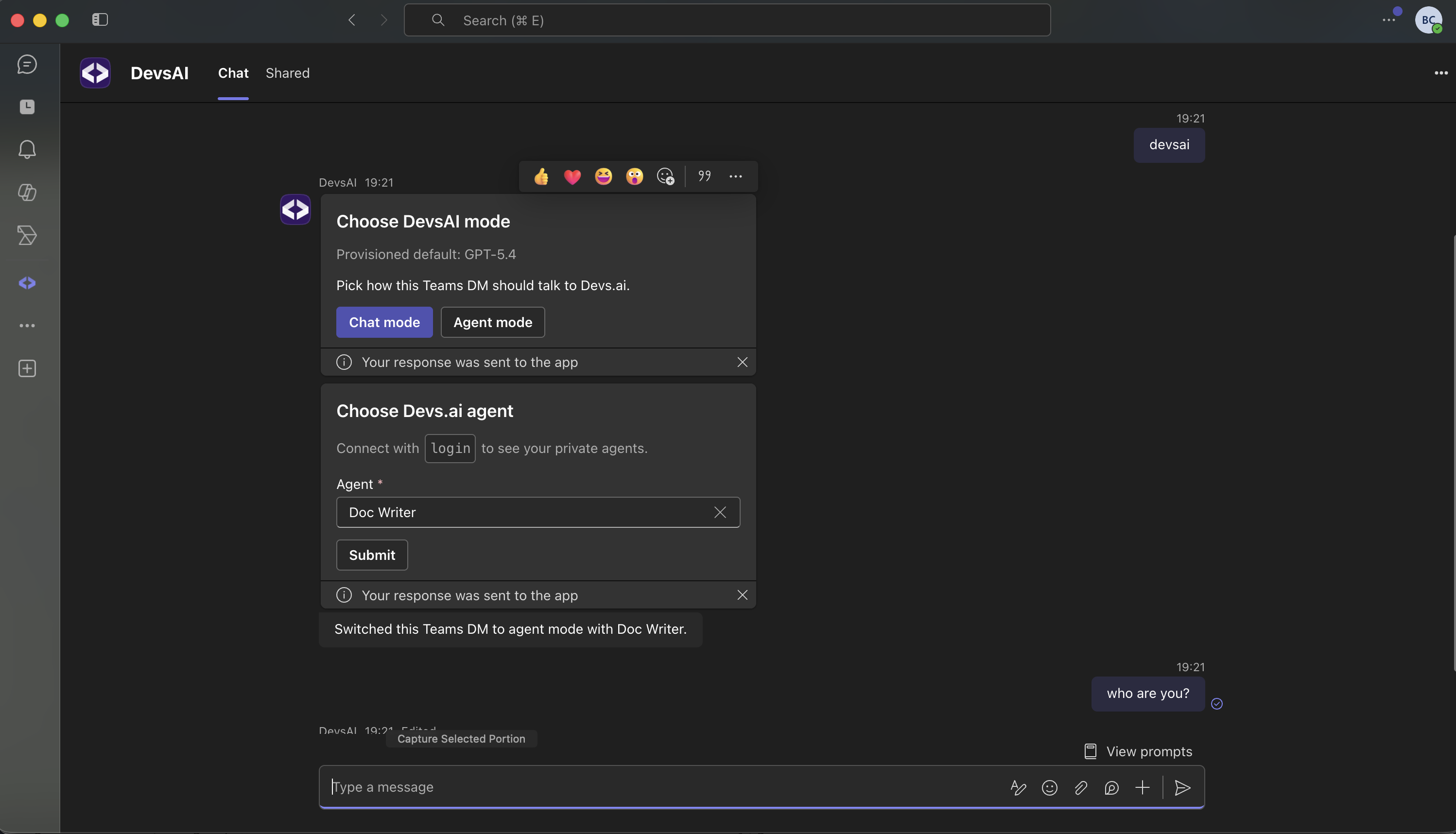
To change the target for the current DM, use the devsai commands:
devsai help— open a picker to choose Chat mode (a model) or Agent mode (an agent).devsai status— show the model or agent currently serving this DM.devsai models [search]— list available chat models (optionally filtered) and pick one.devsai agents [search]— list available agents (optionally filtered) and pick one.devsai chat <modelId>— switch this DM to chat mode with a specific model.devsai agent <agentId>— switch this DM to agent mode with a specific agent.devsai new— start a fresh Devs.ai chat in this DM and reset it to the provisioned default chat model. Previous conversation context is no longer sent to the model, and any model or agent you selected for this DM is cleared.
Your selection sticks to that DM, so follow-up messages continue with the same model or agent until you change it again. Use devsai new whenever you want a clean slate against the default.
How do I use the app in a channel?
Add DevsAI to a team, then @mention it in a channel to start a conversation. Agents can provide context-sensitive answers and conversation summaries. Replies in the same thread continue the conversation without re-mentioning.
You can set a per-channel default so new mentions use a specific model or agent. Channel commands are the same as in a DM, but you must @mention the app:
@DevsAI devsai help— choose the channel's default Chat mode or Agent mode.@DevsAI devsai status— show the channel's current default.@DevsAI devsai models [search]/@DevsAI devsai agents [search]— list and pick a model or agent.@DevsAI devsai chat <modelId>/@DevsAI devsai agent <agentId>— set the channel's default.@DevsAI devsai remove-default— clear the channel default and fall back to the provisioned default.
📝 Note: In channels the app responds mention-only — it replies when you @mention it or in an ongoing thread it has joined, so it won't respond to every message.
How do I log in to use personal agents and authorize connectors?
⚠️ Temporarily unavailable: The personal login flow for Teams is not ready yet and is temporarily disabled. The
login/connect/authcommands may not complete successfully. Until it ships, you can use public and organization agents and chat models; private/personal agents and connector authorization that require linking your account are not yet available in Teams. This page will be updated when the flow is enabled.
By default, the app only lists public and organization agents. To use your private/personal agents — and to let agents act on your behalf — connect your Devs.ai account:
- In a direct message with DevsAI, send
login(you can also useconnectorauth). - The app replies with a personal authorization link. Open it and sign in to Devs.ai.
- Approve the request, then return to Teams and message the app again.
Once connected:
devsai agentsnow includes your private agents in addition to public and organizational ones.- Agents run as you, so any MCP server connectors your agents use are authorized with your identity. The first time an agent uses a connector that needs your authorization, you'll be prompted to grant access (for example, the Slack or Microsoft services connectors).
📝 Note: Your login is scoped to your user in this Teams workspace. If your session expires or access is revoked, the app will ask you to run
loginagain.
Command reference
| Command | Where | What it does |
|---|---|---|
login (or connect, auth) | DM | Connect your Devs.ai account to unlock personal agents and connector authorization. (Temporarily unavailable — see note above.) |
devsai help | DM / channel | Open the Chat mode / Agent mode picker. |
devsai status | DM / channel | Show the active model or agent. |
devsai models [search] | DM / channel | List and pick a chat model. |
devsai agents [search] | DM / channel | List and pick an agent. |
devsai chat <modelId> | DM / channel | Switch to chat mode with a model. |
devsai agent <agentId> | DM / channel | Switch to agent mode with an agent. |
devsai new | DM | Start a fresh chat and reset the DM to the provisioned default model. |
devsai remove-default | channel | Clear the channel default. |
📝 Note: In channels, prefix every command with an @mention, for example
@DevsAI devsai help.
Related topics
- Integrating Slack — another workplace chat integration.
- Organization models — setting the default chat model that new Teams DMs use.
- Microsoft Services (MCP) — agents reading or sending Teams messages via Graph, not the Teams client app.
- Getting started — sidebar navigation and account settings.